
- Overview
- Implementing Schema Markup
- How to See if You've Added Schema Correctly
- FAQs
Overview
In order for the schema markup we send you to be effective, it needs to be properly added to your website. This article will guide you through the process of adding the provided schema to your site.
At the bottom of this page, you will also find some FAQs to answer any questions you may have—like “What is schema?” and “Why is schema?” You know, the important things!
⚠️ If you are manually adding your schema (as in, not using a plug-in on the backend of your website), it is important to be extremely careful. If you are worried about implementing your schema incorrectly, please reach out! We are more than happy to help!
Implementing Schema Markup
Adding Schema to WordPress Sites Without Plugins*
*Plugins may make these instructions vary. We recommend Googling specific plugin instructions for adding schema, or just reach out to our team.
- Log in to your WordPress dashboard.
- Navigate to the theme editor (Appearance > Theme Editor) and select the theme you are currently using.
- Locate the header.php file.
- The opening head tag looks like this <head>, while the closing head tag looks like this </head>.
- Paste the entire schema code just above the </head> line. It is recommended to use the Command/Control+F search function to find these header tags!
- These header tags are typically on their own separate line, making them easy to find in the maze of code on your website!
- Save your changes.
Adding Schema to Wix Sites
- Log in to your Wix account.
- Navigate to your Pages panel.
- Find the page you want to update.
- Click the three dots (⋯) next to the page name.
- Select Advanced SEO Basics.
- Scroll to Structured Data Markup.
- Paste the schema item we provided (JSON-LD format) into the field.
- Save and publish.
Adding Schema to Squarespace Sites
- Log in to your Squarespace account.
- Navigate to your Pages panel.
- Click on the page you want to edit.
- On the page, add a new "Code" Block (you can place this block anywhere — it will not be visible to users if configured correctly).
- In the Code Block, paste the schema item we provided
Adding Schema through Google Tag Manager
- Log into Google Tag Manager (GTM)
- Select your website’s container
- Select “Add a new tag”
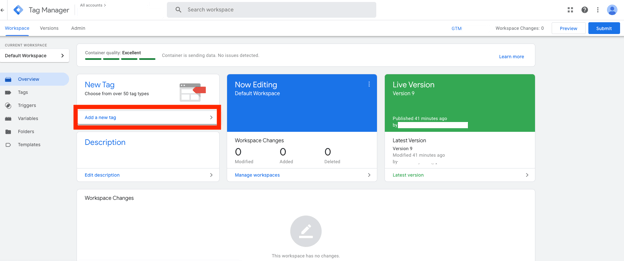
- Label the tag “Local Business Schema”
- Under Tag Configuration select “Custom HTML”
- Under HTML add your Local Schema Script
- Under “Triggering” select “All Pages”
- Select “Save”
- On the GTM homepage, select “Submit”
How to See if You've Added Schema Correctly
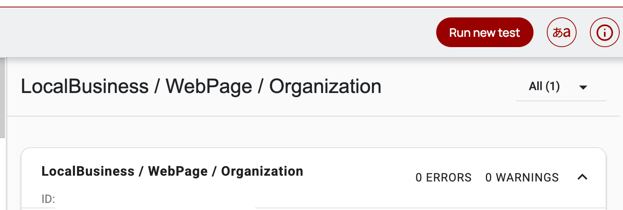
- Go to this website https://validator.schema.org/
- You can either enter a URL to test existing Schema markup, or enter a code snippet to test it before using it on your website. We recommend using the URL tester to ensure all works as intended without errors or warnings.
Schema (Structured Data) FAQs
- Why is schema important?
- Schema (also known as structured data markup) helps search engines understand what your website is about. It gives search engines information about your business, such as the address, phone number, and business hours, which in turn allows search engines to display the business information to searchers. By adding schema to your website and its pages, it can lead to better search rankings, richer search results, and increased click-through rates. This powerful piece of code will only become more important as AI continues to be implemented into search engines like Google.
- What is schema?
- It is a standardized piece of code that tells search engines what your website/page is about. It can include the main business information, like the name, address, phone number, and hours, or it can give detailed information about services, products, and even events.
- Will schema help my business show up in AI searches?
- Yes! In fact, schema will only become more important as AI continues to grow in popularity. AI is also looking at schema to understand more about your business, so the more schema you have on your website, the better!
- What are the different types of schema?
- LocalBusiness / Organization: Acts as your digital business card, helping search engines display your core business details (name, address, phone, hours) in local and branded search results.
- FAQ: Marks up Frequently Asked Questions and Answers so they can appear directly in search results, improving visibility and driving more clicks.
- Event: Highlights details of upcoming events (date, time, location, description), making them easier to discover through Google and other search platforms.
- Product: Provides detailed information about products (name, image, price, availability), allowing rich product results to appear in search and shopping listings.
- Service: Describes the services your business offers, helping search engines better understand and display your offerings in local and relevant searches.
- Article: Defines an article, blog post, or news content so it can appear with rich features in search, such as headline, author, and publication date.
- LocalBusiness / Organization: Acts as your digital business card, helping search engines display your core business details (name, address, phone, hours) in local and branded search results.